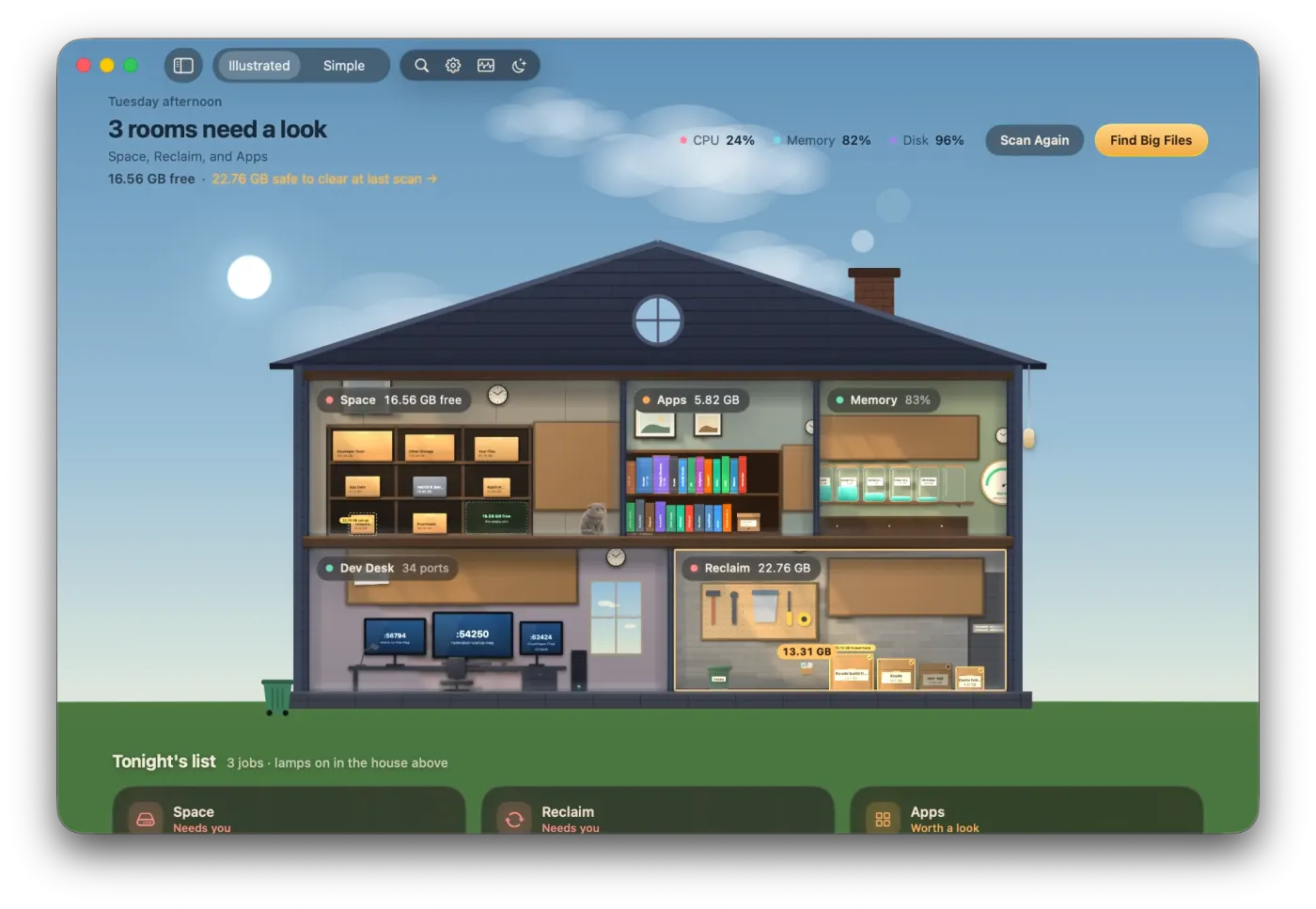
 Clean House
System Data is the catch-all category in Mac storage for files macOS can't label as Apps, Documents or Photos. It holds caches, logs, local Time Machine snapshots, iPhone backups and app support data. You clear it by finding which part is large and removing that part, since there is no single delete button.
What is System Data on a Mac?
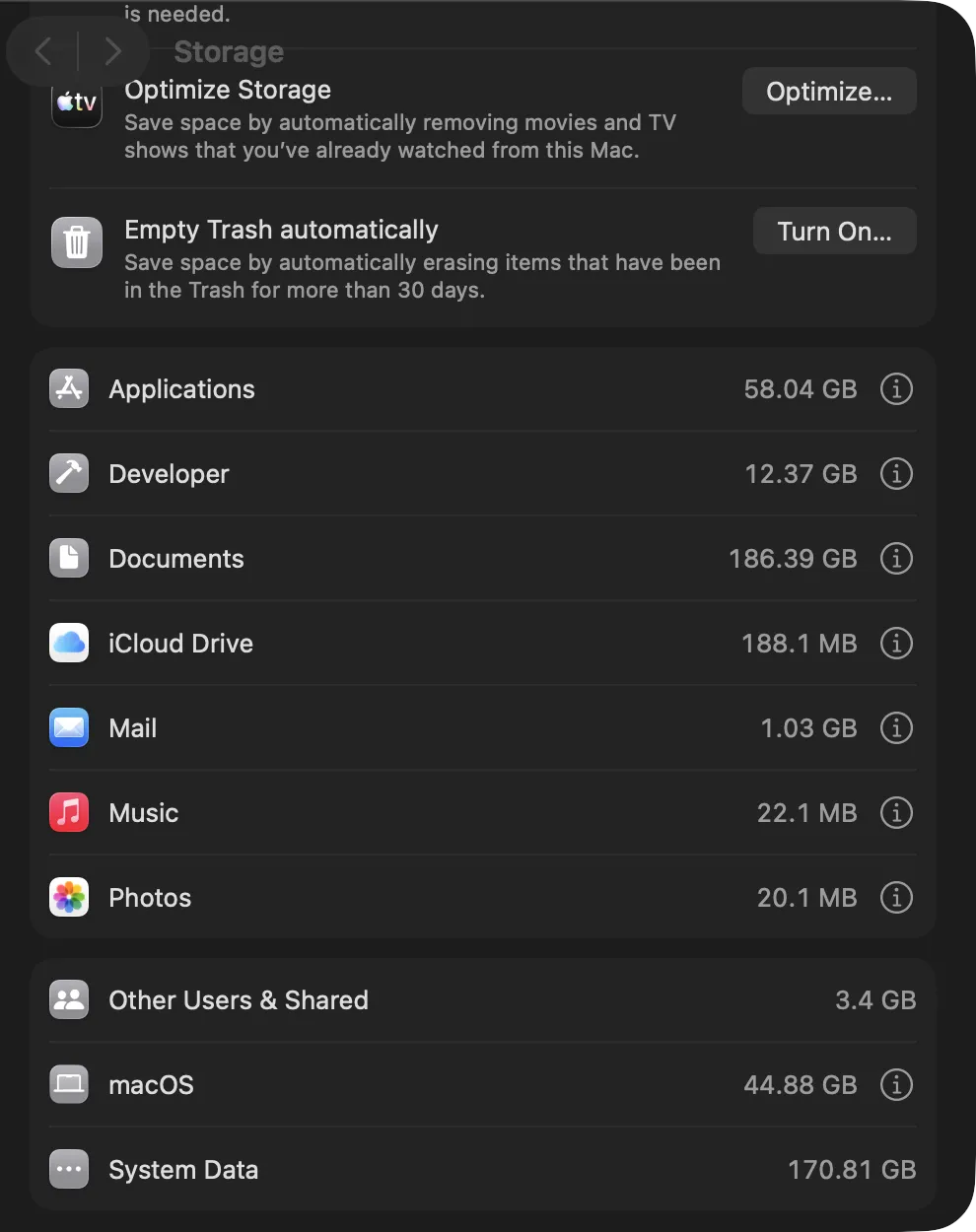
Open Apple menu > System Settings > General > Storage and you will see a bar split into Applications, Documents, Photos and so on, plus System Data. Apple describes it as a general category for Apple and third-party files that don't fit a more specific one. On older macOS versions the same thing was called "Other".
The category is a leftover bucket, not a folder. That is why it can swell to a surprising size and why no single click empties it. To shrink it you have to look at what is inside.
How big should System Data be?
There is no right number. Apple doesn't publish a normal size, and two Macs on the same macOS version can differ by a hundred gigabytes, depending on the apps on them. A large figure on its own is not a fault. Worry when System Data is bigger than your free space, or when it grows every week without you installing anything.
Here is a real one. On 24 November 2026 a MacBook we checked had 17 GB free and 170 GB of System Data. Going folder by folder, the biggest owners were not junk at all:
| Owner | Size | What it is |
|---|---|---|
| 42 GB | Photos, videos and voice notes from chats | |
| iOS simulators and Android emulators | about 21 GB | Developer test devices |
| Claude app | 12 GB | A virtual machine bundle the app uses |
| Xcode build data, caches, npm | about 17 GB | Real junk: it rebuilds or downloads again |
| Cursor | 7.8 GB | One editor state database |
So the question is not "how big is System Data?" but "who owns it, and what comes back if it goes?" The parts below show where each owner lives.
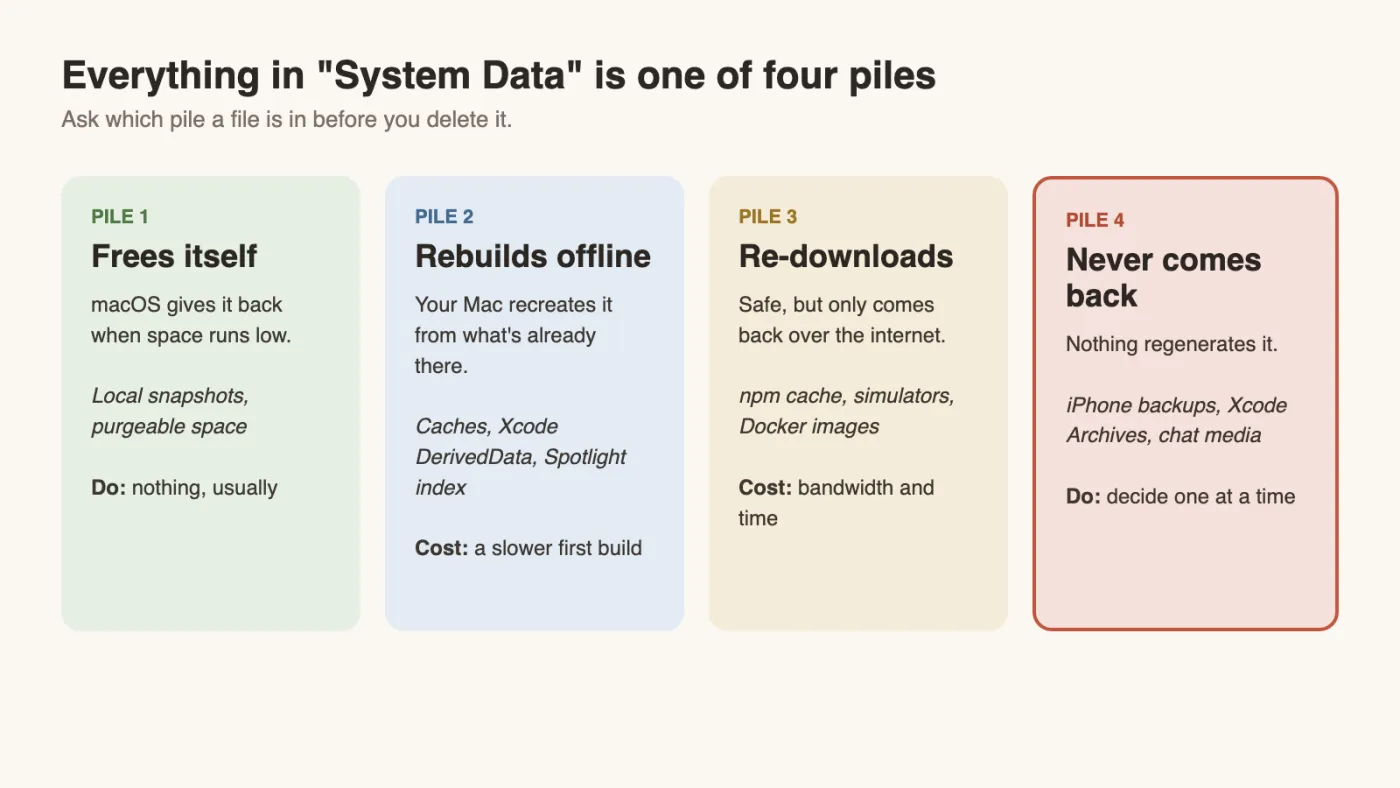
What is actually inside System Data?
These are the real parts, with a way to check each one.
| Part | Where it lives | How to check | Verdict |
|---|---|---|---|
| Local Time Machine snapshots | On the startup disk (APFS) | tmutil listlocalsnapshots / | Look first |
| User caches | ~/Library/Caches | Finder > Go > Go to Folder | Safe to clear |
| Logs | ~/Library/Logs, /Library/Logs | Open the folders, sort by size | Safe to clear |
| iPhone and iPad backups | ~/Library/Application Support/MobileSync/Backup | Finder > device > Manage Backups | Look first |
| App support data | ~/Library/Application Support | Sort folders by size | Keep unless the app is gone |
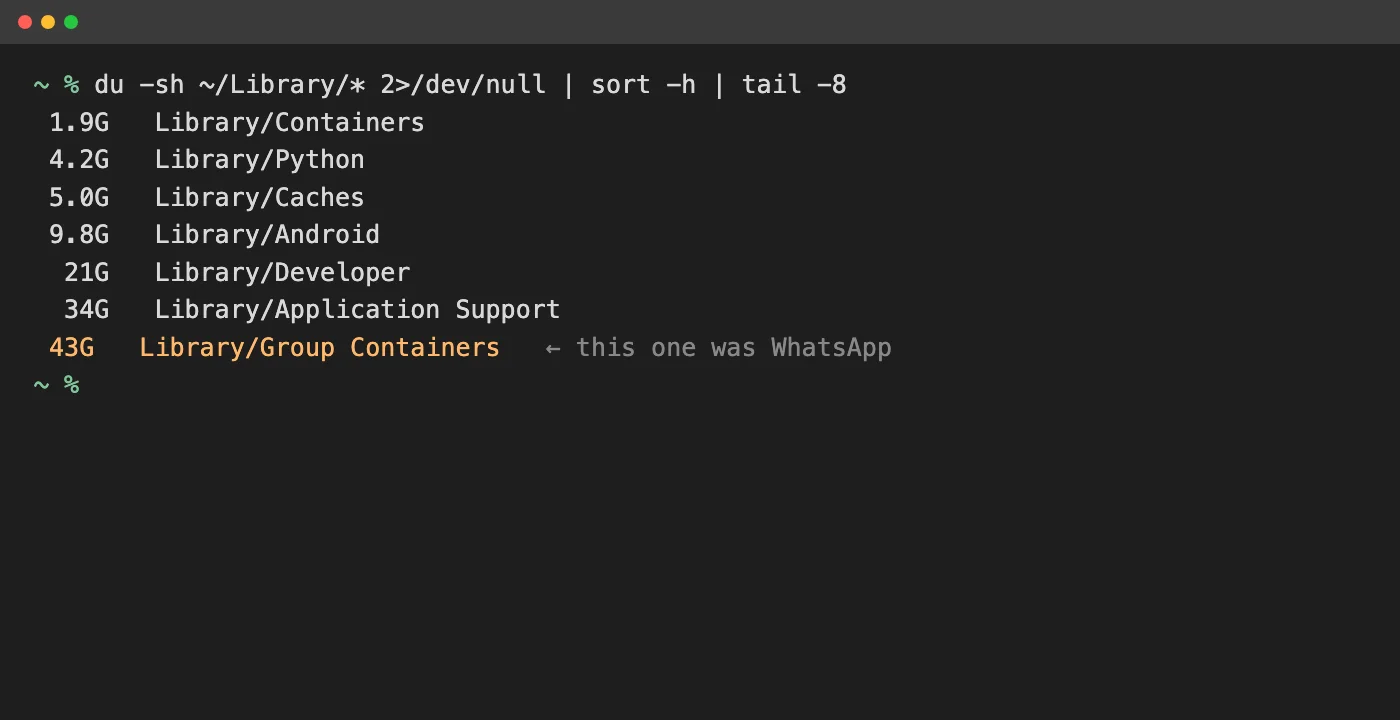
| Chat app media (WhatsApp and similar) | ~/Library/Group Containers | du -sh ~/Library/Group\ Containers/* | sort -h | Look first, trim inside the app |
| AI app virtual machines and data | ~/Library/Application Support (for example the Claude app's vm_bundles) | du -sh ~/Library/Application\ Support/* | sort -h | Look first |
| Mail and Messages | ~/Library/Mail, ~/Library/Messages | Check folder sizes | Keep |
| Sleep image and swap | /private/var/vm | ls -lh /private/var/vm | Keep (macOS manages it) |
| Local AI models | ~/.ollama/models, ~/.cache/huggingface | du -sh ~/.ollama ~/.cache/huggingface | Look first |
| Developer data | Xcode, simulators, Gradle, Docker, node_modules | du -sh ~/Library/Developer | Look first |
Local Time Machine snapshots
Apple says Time Machine makes a local snapshot every hour, keeps it up to 24 hours, and removes it when space is needed. Snapshots exist only on APFS disks and only while Back Up Automatically is on. They count as System Data. If you suspect they are the cause, read purgeable space and local snapshots.
Caches and logs
Apps write cached copies of things they can rebuild, such as thumbnails and downloaded web assets. They live in ~/Library/Caches, and logs sit in the Logs folders. Both regrow. The full walkthrough is in how to clear cache on a Mac. Temporary per-user files in /private/var/folders belong to the system, so leave them to macOS.
iPhone and iPad backups
Each device backup is a folder of hashed files in MobileSync/Backup. A phone with a lot of photos and apps can leave a backup that is large, and old devices leave stale copies behind. See how to delete old iPhone backups and the MobileSync folder page.
Virtual memory and the sleep image
macOS keeps swap files and a sleepimage in /private/var/vm. Their size follows your memory use. They are protected system files, so you can't and shouldn't delete them by hand. Restarting the Mac resets swap.
Local AI models and developer data
If you run local language models or write code, these are often the biggest items. Models from Ollama or Hugging Face are covered in AI model storage on a Mac. Xcode, simulators and build caches are covered in Xcode storage.
How do I see what is filling System Data?
- Open System Settings > General > Storage and note the System Data size. It can take a moment to finish calculating.
- In Terminal, check the snapshots:
tmutil listlocalsnapshots /. - Measure the big folders:
du -sh ~/Library/Caches ~/Library/Logs ~/Library/Application\ Support ~/Library/Developer 2>/dev/null - Check for iPhone backups:
du -sh ~/Library/Application\ Support/MobileSync/Backup. - Clear the safe parts first (caches, logs, old backups), then re-check Storage. The figure can take a few minutes to update.
Terminal can only see folders your Terminal app has access to. If a command reports "Operation not permitted", grant Full Disk Access to Terminal in System Settings > Privacy & Security, or use the Finder instead.
How do I clear System Data safely?
Work from the safest item down. Quit apps before touching their caches.
- Empty the Trash. Files in the Trash keep using space until you do.
- Delete backups of iPhones and iPads you no longer own, through Finder.
- Clear large app caches with the app closed.
- Remove developer and AI model data you no longer use.
- Restart the Mac so swap and temporary files reset.
Don't delete anything under /System or /private/var by hand, and don't remove folders from ~/Library/Application Support unless you know the app that owns them is gone. Those hold real settings and data.
Where does Clean House help with System Data?
Clean House shows what makes up System Data, including local snapshots, so you see the parts instead of one grey bar. Each item gets a plain "Why?" card (which app made it, whether that app is still installed, and what happens if it goes) and a call of Safe to clear, Look first or Keep. System files are never offered. Cleaning moves files to the Trash after a final re-check, and "Recently Cleared" puts them back until you empty the Trash. Scanning and explanations are free, and the scan runs on your Mac with no file names uploaded.
For the wider plan, see how to free up space on a Mac.